
Website speed and stability directly influence how users experience your site — and how Google ranks it. Since Google introduced Core Web Vitals as a confirmed ranking signal, site owners can no longer ignore performance metrics. A slow-loading page or a layout that jumps around frustrates visitors and drives them away before they ever engage with your content.
Many websites fail Core Web Vitals not because of one major issue, but because of several small performance problems stacking up over time. Unoptimized images, bloated plugins, render-blocking scripts, and unstable layouts quietly drag down your scores.
This is why understanding and fixing Core Web Vitals has become an essential part of SEO and web development. A proper optimization strategy helps identify performance bottlenecks before they damage your rankings, allowing you to take corrective action through caching, code optimization, image compression, or a full technical audit when necessary.
What Are Google Core Web Vitals?
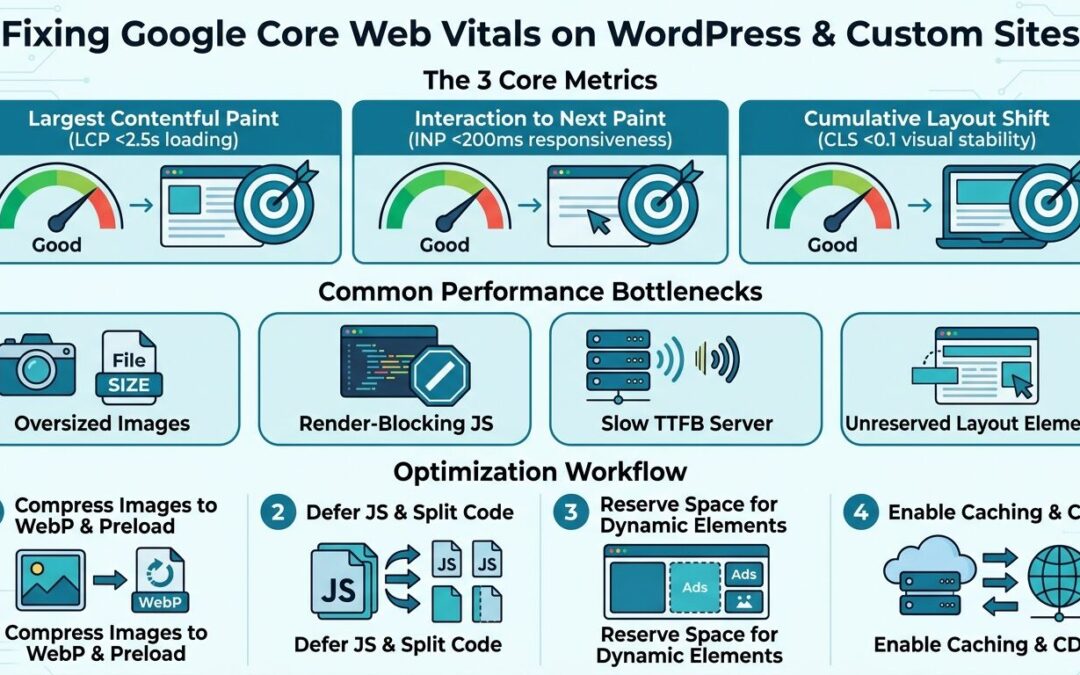
Core Web Vitals are a set of specific metrics Google uses to measure real-world user experience on a webpage. They focus on loading speed, interactivity, and visual stability.
The three current Core Web Vitals are:
Largest Contentful Paint (LCP)
How quickly the main content loads
Interaction to Next Paint (INP)
How responsive the page is to user input
Cumulative Layout Shift (CLS)
How much the layout shifts unexpectedly
Google evaluates these metrics using field data from real users (through the Chrome User Experience Report) and lab data from tools like Lighthouse and PageSpeed Insights.
The goal is to determine whether your website delivers a fast, stable, and responsive experience across mobile and desktop devices.
Why Core Web Vitals Matter for SEO and Users
Not every slow website looks broken, and not every performance issue shows up in a visual inspection.
Some problems — like third-party script delays or layout shifts caused by late-loading fonts — remain invisible until you run proper diagnostic tools.
Regular Core Web Vitals optimization helps website owners:
- Improve Google search rankings
- Reduce bounce rates
- Increase conversions and engagement
- Enhance mobile user experience
- Strengthen overall technical SEO
- Build long-term site performance stability
Early detection of performance issues often prevents costly redesigns or traffic losses down the line.
Understanding the Three Core Web Vitals Metrics
Before fixing anything, it helps to understand exactly what each metric measures and what counts as a good score.
Largest Contentful Paint (LCP)
- Good: under 2.5 seconds
- Needs improvement: 2.5–4.0 seconds
- Poor: over 4.0 seconds
- Measures how fast the largest visible element (hero image, heading, video) renders
Interaction to Next Paint (INP)
- Good: under 200 milliseconds
- Needs improvement: 200–500 milliseconds
- Poor: over 500 milliseconds
- Replaced First Input Delay (FID) in March 2024 and measures overall page responsiveness
Cumulative Layout Shift (CLS)
- Good: under 0.1
- Needs improvement: 0.1–0.25
- Poor: over 0.25
- Measures unexpected visual movement of page elements during loading
These thresholds apply to the 75th percentile of page loads across mobile and desktop.
Common Causes of Poor Core Web Vitals
Professional audits often reveal issues that are difficult to detect without proper tools and testing.
Common performance problems include:
- Uncompressed or oversized images
- Render-blocking JavaScript and CSS
- Slow server response times (TTFB)
- Excessive WordPress plugins
- Unoptimized third-party scripts
- Web fonts loading without font-display swap
- Ads or embeds without reserved space
- No caching or CDN in place
- Heavy themes with unused code
- Layout shifts from dynamic content injection
These issues can significantly slow down a site even if it looks fine on the surface.
How to Fix LCP (Largest Contentful Paint)
LCP is usually the most impactful metric to fix, especially for WordPress sites with large hero images.
Recommended actions:
- Compress and convert images to WebP or AVIF
- Implement lazy loading (but not on the LCP element)
- Use a CDN to serve assets faster
- Enable page caching and object caching
- Preload critical fonts and hero images
- Reduce server response time with better hosting
- Minify and defer non-critical CSS and JavaScript
- Remove unused plugins and scripts
WordPress-specific fixes:
- Use plugins like WP Rocket, LiteSpeed Cache, or Perfmatters
- Optimize with Cloudflare or another CDN
- Switch to a lightweight theme like GeneratePress or Kadence
Custom website fixes:
- Implement server-side caching (Redis, Varnish)
- Use HTTP/2 or HTTP/3
- Optimize critical rendering path manually
- Preconnect to essential third-party origins
How to Fix INP (Interaction to Next Paint)
INP measures how quickly your page responds when a user clicks, taps, or types. Heavy JavaScript is usually the main culprit.
Recommended actions:
- Break up long JavaScript tasks
- Defer or remove unused JavaScript
- Use code splitting for large bundles
- Avoid heavy third-party scripts (chat widgets, trackers)
- Optimize event handlers and avoid blocking the main thread
- Use web workers for intensive tasks
WordPress-specific fixes:
- Disable unused plugins that load scripts site-wide
- Delay JavaScript execution until user interaction
- Reduce jQuery dependencies where possible
Custom website fixes:
- Audit bundle size with Webpack Bundle Analyzer
- Implement React lazy loading or Vue async components
- Move non-critical logic to the server
How to Fix CLS (Cumulative Layout Shift)
CLS problems often come from elements loading without reserved space, causing content to jump.
Recommended actions:
- Set explicit width and height on images and videos
- Reserve space for ads, embeds, and iframes
- Use font-display: swap with preloaded fonts
- Avoid injecting content above existing content
- Use CSS aspect-ratio for responsive media
- Prevent late-loading banners from pushing content down
WordPress-specific fixes:
- Ensure theme and plugins reserve space for dynamic elements
- Avoid sliders that load content asynchronously without dimensions
- Test with Google PageSpeed Insights and Chrome DevTools
Custom website fixes:
- Use CSS containment and fixed layout containers
- Preload above-the-fold assets
- Avoid client-side rendering for critical layout components
The Importance of Regular Performance Monitoring
Routine monitoring works together with one-time fixes to maintain long-term performance.
Ongoing monitoring may include:
- Google Search Console Core Web Vitals report
- PageSpeed Insights and Lighthouse audits
- CrUX dashboard tracking
- Real user monitoring (RUM) tools
- Uptime and TTFB monitoring
- Monthly performance regression checks
Regular monitoring reduces the risk of performance degradation after updates, plugin installs, or content changes.
Why Site Updates Increase Performance Risks
Adding new plugins, themes, or third-party scripts can weaken performance even when nothing appears broken.
Common triggers include:
- New plugin installations
- Theme updates
- Added tracking or marketing scripts
- New fonts or icon libraries
- E-commerce or booking integrations
- Seasonal promotions with heavy media
A performance audit after major updates helps identify regressions before they impact rankings.
Why Custom Websites Need Special Attention
Custom-built websites often have unique performance challenges that generic WordPress fixes won’t solve.
Custom sites frequently involve:
- Hand-coded JavaScript frameworks
- API-driven content loading
- Custom CMS or headless architecture
- Complex deployment pipelines
- Third-party integrations
Regular audits help developers reduce technical debt while maintaining fast, stable performance for users.
Preventive optimization also minimizes emergency debugging after traffic drops.
When Should You Run a Core Web Vitals Audit?
Website owners should consider scheduling an audit when:
- Google Search Console flags URLs as “Poor”
- Site speed feels slow on mobile
- New plugins or scripts are added
- A redesign or migration occurs
- Traffic or rankings drop unexpectedly
- Competitors consistently outrank you
- Core Web Vitals scores change in CrUX
Regular audits are especially important for e-commerce, lead-gen, and high-traffic sites.
Conclusion
Fixing Google Core Web Vitals is an essential part of responsible website maintenance. It helps identify hidden performance issues, improve user experience, and reduce the risk of ranking losses before they occur.
Whether for WordPress blogs, e-commerce stores, or custom-built web applications, regular optimization provides valuable insights that support faster, more stable websites. Combined with caching, image optimization, script management, and professional audits when necessary, Core Web Vitals optimization helps protect both your search visibility and your long-term digital investment.
FAQs
- What are Google Core Web Vitals?
Core Web Vitals are a set of user experience metrics — LCP, INP, and CLS — that Google uses to evaluate how fast, responsive, and visually stable a webpage is. They are a confirmed ranking signal and are reported in Google Search Console.
- How do I check my Core Web Vitals score?
You can check your scores using Google PageSpeed Insights, Google Search Console’s Core Web Vitals report, Chrome DevTools Lighthouse, or the CrUX Dashboard. These tools show both field data (real users) and lab data (simulated tests).
- Can a fast-looking website still fail Core Web Vitals?
Yes. A site may appear fast on a developer’s machine but still fail on real mobile devices due to heavy JavaScript, unoptimized images, slow TTFB, or third-party scripts. Only proper testing reveals these hidden issues.
- How often should I audit my Core Web Vitals?
You should audit at least quarterly, or after any major update, redesign, plugin installation, or traffic change. High-traffic and e-commerce sites benefit from monthly monitoring.
- What happens after a Core Web Vitals audit?
After the audit, a specialist explains your current scores and recommends fixes. Depending on the findings, this may include image optimization, caching setup, script deferral, layout stabilization, CDN configuration, or ongoing performance monitoring to maintain healthy scores.